Introducing SignalYard: Self-Hosted Structured Logging for Azure That Costs Cents
I’ve built and released another tool: SignalYard, an open source, self-hosted structured logging tool for Azure. It runs in Azure App Service, stores everything in Azure Table Storage, and ships logs from .NET via a Serilog sink. It’s MIT licensed and free — the only bill is your storage account, which works out to cents a month.
Like DNS Lens and HandyUtils, this one started as a scratch-my-own-itch project. I run a number of apps across Azure App Service, and I wanted one place to read their logs without paying enterprise observability prices for what is, most of the time, “show me the errors from this app since yesterday”.
Why not just use Application Insights?
Application Insights is a great product, and for big systems with distributed tracing needs it’s the right call. But for the small-to-medium apps most of us actually run, it’s a lot: sampling to understand, KQL to learn, per-GB ingestion pricing to watch, and data that lives in someone else’s workspace on someone else’s retention terms.
What I wanted was simpler:
- Structured logs from all my apps in one place
- Fast search by app, level, and time range
- A dashboard showing volume and error trends at a glance
- Predictable, near-zero cost
- My data in my storage account
That’s SignalYard. It’s a full logging stack, not a black box — you run it, you own the data. No per-seat pricing, no ingestion quotas.
How it works
SignalYard is a .NET 10 app you deploy to Azure App Service (a Basic plan is plenty). It uses Azure Table Storage as its backend, which is the secret to the cost: Table Storage is one of the cheapest services in Azure, and log data — partitioned by app and time — is exactly the shape it’s good at.
On the client side, there’s an official Serilog sink. If you’re already using Serilog (and if you’re writing .NET, you probably are — I’ve written about Serilog in Azure Functions before), it’s three lines:
using Serilog;

Log.Logger = new LoggerConfiguration()
    .WriteTo.SignalYard(
        serverUrl: "https://your-signalyard.azurewebsites.net",
        apiKey: "sy_your_api_key_here")
    .CreateLogger();

Log.Information(
    "User {Username} logged in from {IpAddress}",
    "john.doe", "10.0.0.1");
The sink formats events as CLEF, batches them durably, and posts them over HTTP. Message templates, structured properties, levels, and exceptions all come through intact.
Reading logs without fighting them
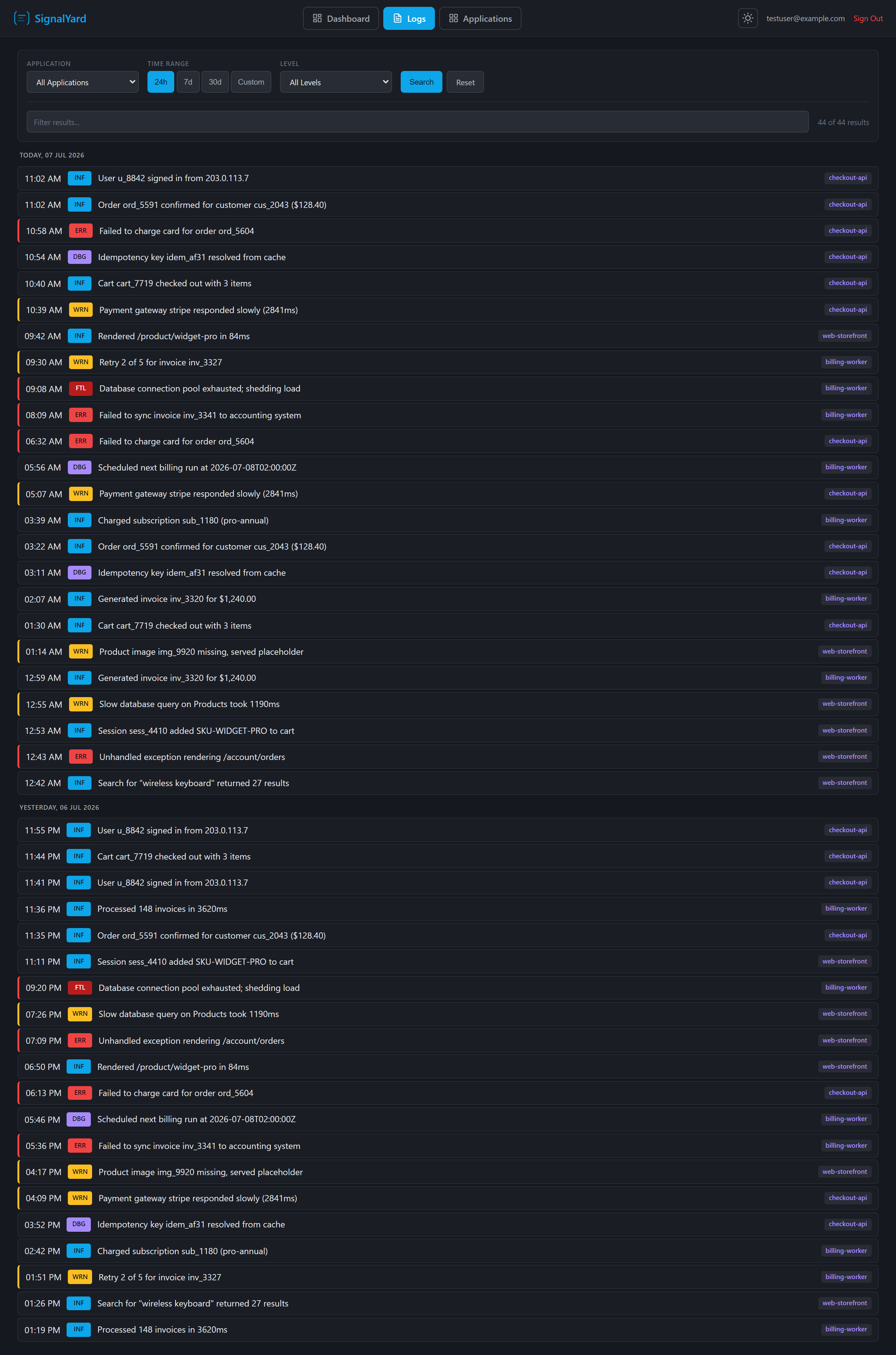
The log viewer is where I spent most of my time, because it’s where you’ll spend most of yours. Pick an application, choose a time range, filter by level, and scan color-coded entries grouped by day. A live filter box narrows results instantly on the client, so drilling from “all of yesterday” down to one request takes seconds. It ships with both dark and light themes, so it’s easy on the eyes whichever way you lean.
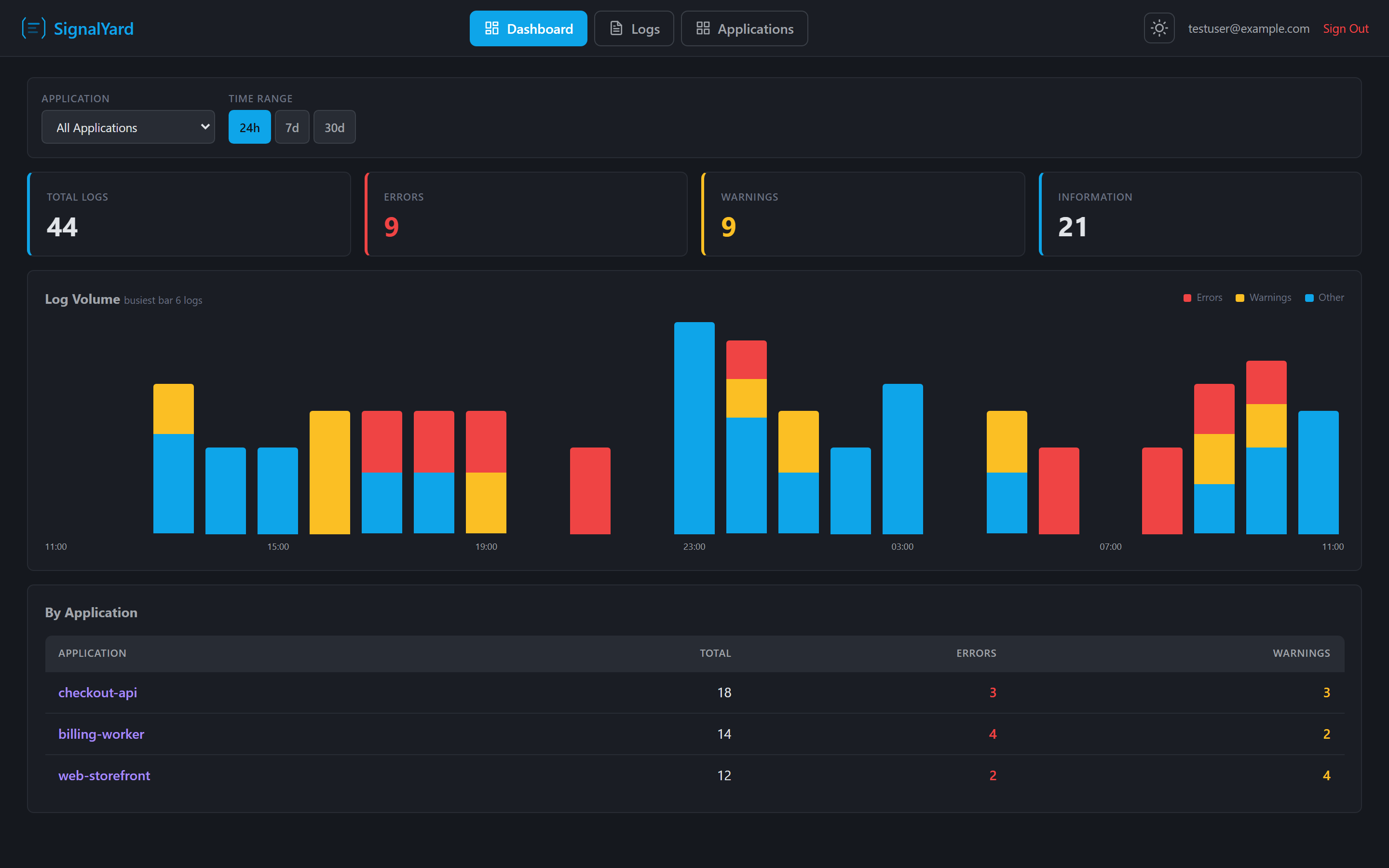
Alongside the viewer there’s a dashboard showing log volume over time with error and warning counts, plus a per-application breakdown — a very useful “is anything on fire?” page to start the morning with.
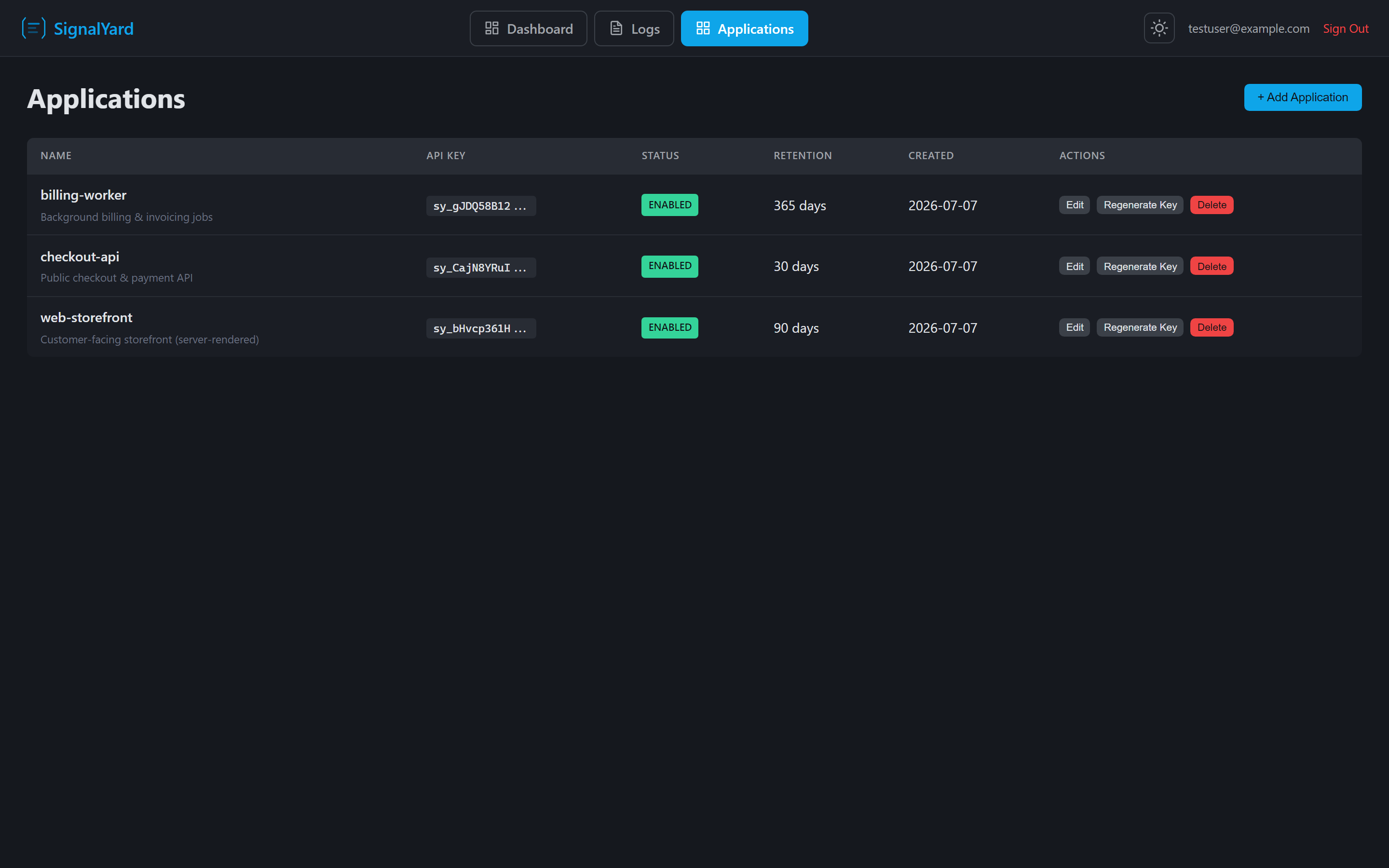
Each application you register gets its own sy_ ingestion key and retention policy, and old partitions are cleaned up automatically. The UI itself sits behind Entra ID authentication.
The part I’m most excited about: AI log investigation
SignalYard exposes a read-only /mcp endpoint, which means Claude Code, VS Code, and any other MCP client can investigate your logs directly. Three tools are available: list_applications, query_logs, and get_log_stats.
In practice this means you can sit in your editor and ask, “why did the checkout service start throwing errors at 2pm?” — and your AI assistant queries the actual logs, correlates across applications, and answers. It’s gated by a single global investigator key, separate from your ingestion keys, and it’s disabled until you explicitly set one.
Having used this for a while now, it’s changed how I debug production issues. The AI is very good at the tedious part of log investigation: scanning thousands of entries, spotting the pattern, and pulling out the three lines that matter.
What it costs
The whole point of self-hosting on Table Storage is that the numbers get silly:
- SignalYard itself: free, open source, MIT licensed
- Hosting: an App Service plan you may already have (it’s happy sharing one)
- Storage: Azure Table Storage at cents per month for typical app logging volumes
No ingestion quotas, no per-seat pricing, no surprise bill because a retry loop went noisy over a weekend. Retention policies keep storage flat over time.
Get started
Everything is on GitHub:
- Server: github.com/sholman/SignalYard — includes the deployment guide
- Serilog sink: Serilog.Sinks.SignalYard on NuGet
dotnet add package Serilog.Sinks.SignalYardDeploy the server, register your first application, paste the key into the sink config, and you’re reading structured logs a few minutes later.
If you try it, I’d love to hear how it goes — issues, feature requests, and PRs are all welcome on GitHub. And if it saves you an Application Insights bill, tell a friend.

Simon Holman
.NET and Azure Developer
I write about .NET, Azure, and cloud development. Follow along for tips, tutorials, and best practices.
Related Posts
Creating a database on Azure SQL
Spinning up a database on a managed SQL server with variable resources per database is heavenly. Creating a database on Azure SQL is very quick and easy to do.
Practical tips on how I achieved 45% Savings on my Microsoft Azure billing
About 18 months ago, I took over a product that was fully run on Azure. The solution costs had ballooned from $2000/month at its inception, to almost
Host your domain with Azure Public DNS zones
Learn how to manage DNS for your domains with Azure Public DNS zones. Build on top of Azure's services for seamless integration.